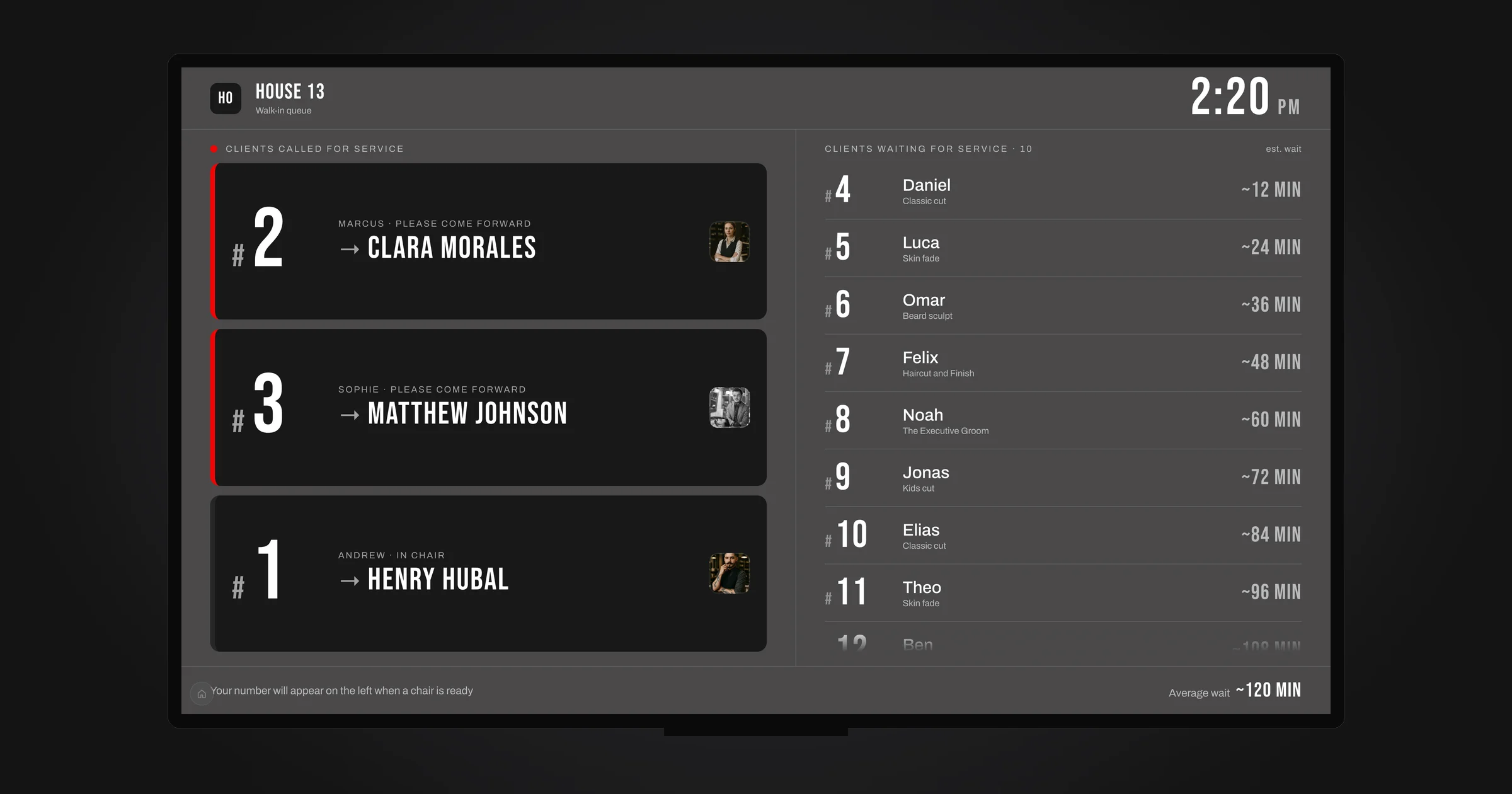
The self check-in kiosk in Barberly was rebuilt from scratch. It now runs the whole walk-in day: a client checks in on a tablet at the door, gets a ticket on the phone, watches the TV for their number and gets a message when it is their turn. Your team runs the line from the Barberly app. The TV screens got their own app for Apple TV and Google TV. And you design all of it, colours, type and every text, on one settings page with a live preview.
The new kiosk, the TV screens and the settings page are live today. The TV app is in review at Apple and Google and will appear in the stores shortly. Everything is included in every Barberly plan, on the tablet and the TV you already have.
Two ways to take walk-ins
You choose how the kiosk works, and you can offer both on different tablets.
- Check-in to the queue. The client picks a service, optionally a barber, leaves a name and gets a number. First come, first served, or assigned to the barber they asked for. The number shows on the TV.
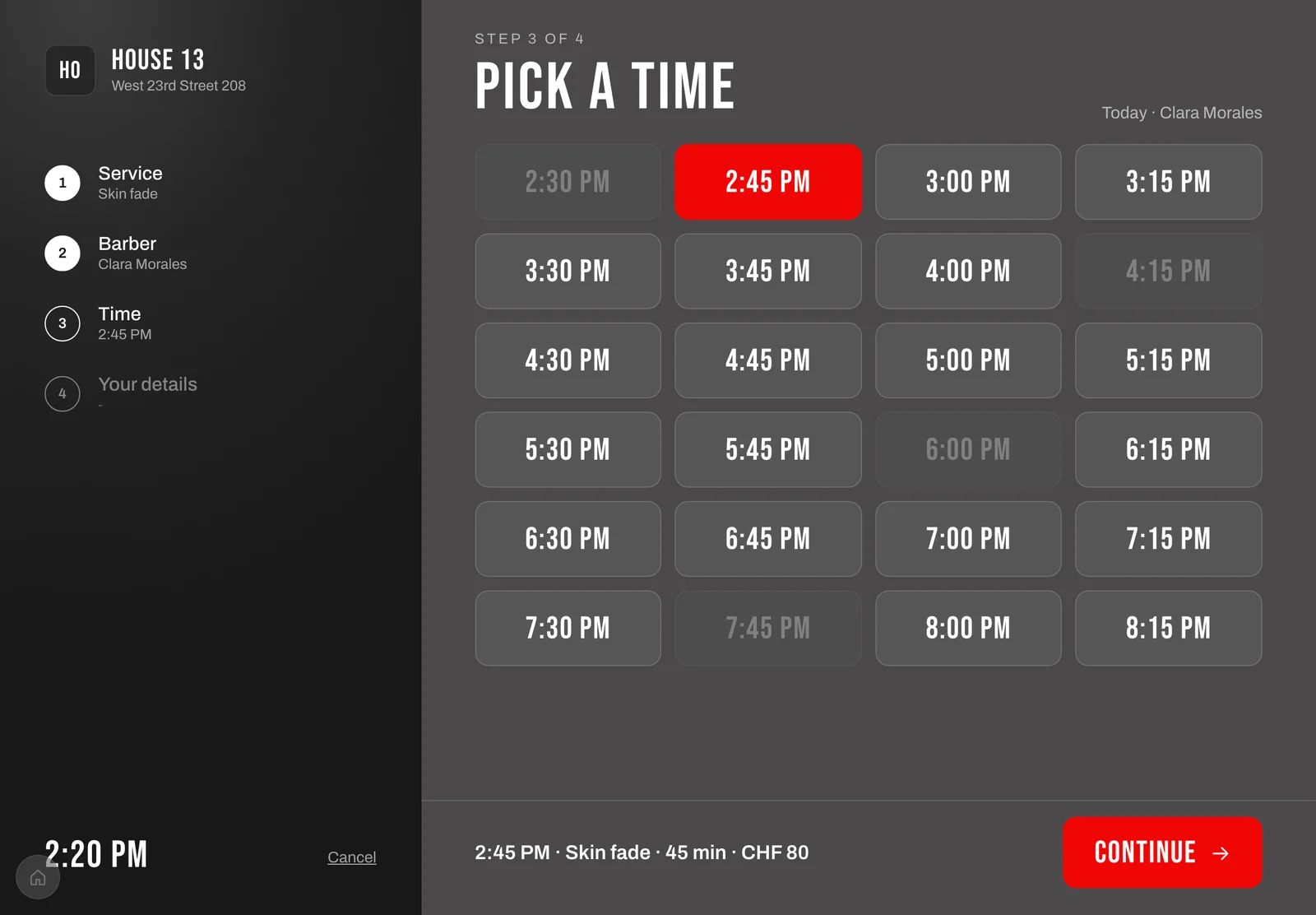
- Check-in with a time. The kiosk books the client into a free slot today with the chosen barber, or the first available one. Walk-ins and online bookings share one timeline, so a walk-in never collides with an appointment. The client comes back at that time.
The kiosk, step by step
The kiosk runs in the browser of any iPad or Android tablet, at your shop's own address. Add it to the home screen and it opens full screen, with the Barberly icon.
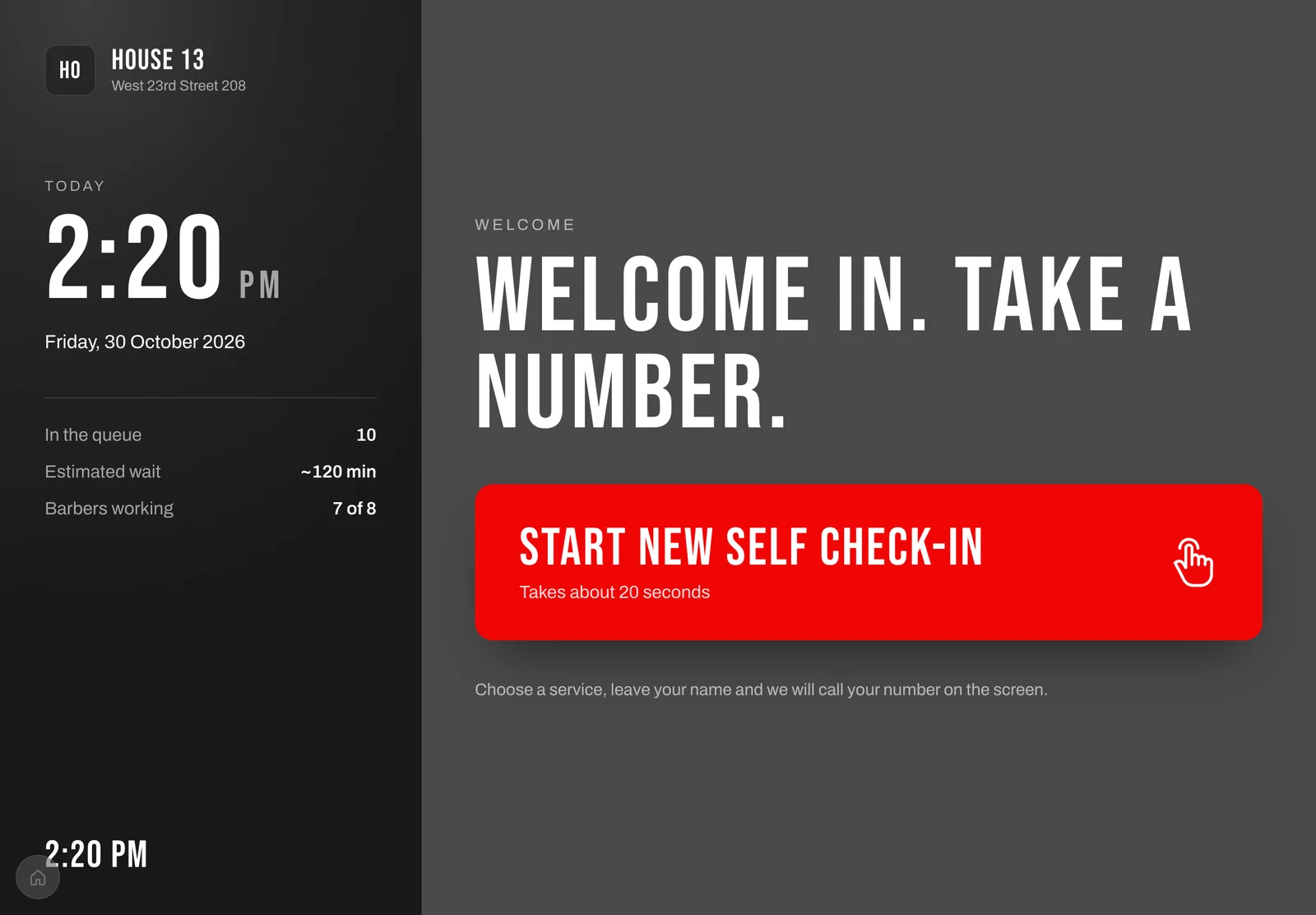
- Start. A headline in large type, a big start button, the clock, and live numbers: how many are in the queue, the estimated wait and how many of the team are working. The timed kiosk shows the next free time instead.
- Services. Category tabs when you use categories. Add-ons appear under the service they belong to.
- Barber. "First available" or a named barber. Barbers who cannot do the chosen services today are greyed out. Switch this step off and every client goes to the first available barber.
- Time, on the timed kiosk only: today's free slots for the chosen barber.
- Contact details. Either a simple form, with first name, mobile and email, each required, optional or hidden, or recognise returning clients: the client types their mobile number, picks themself from the matches and the details fill in. No duplicate client records.
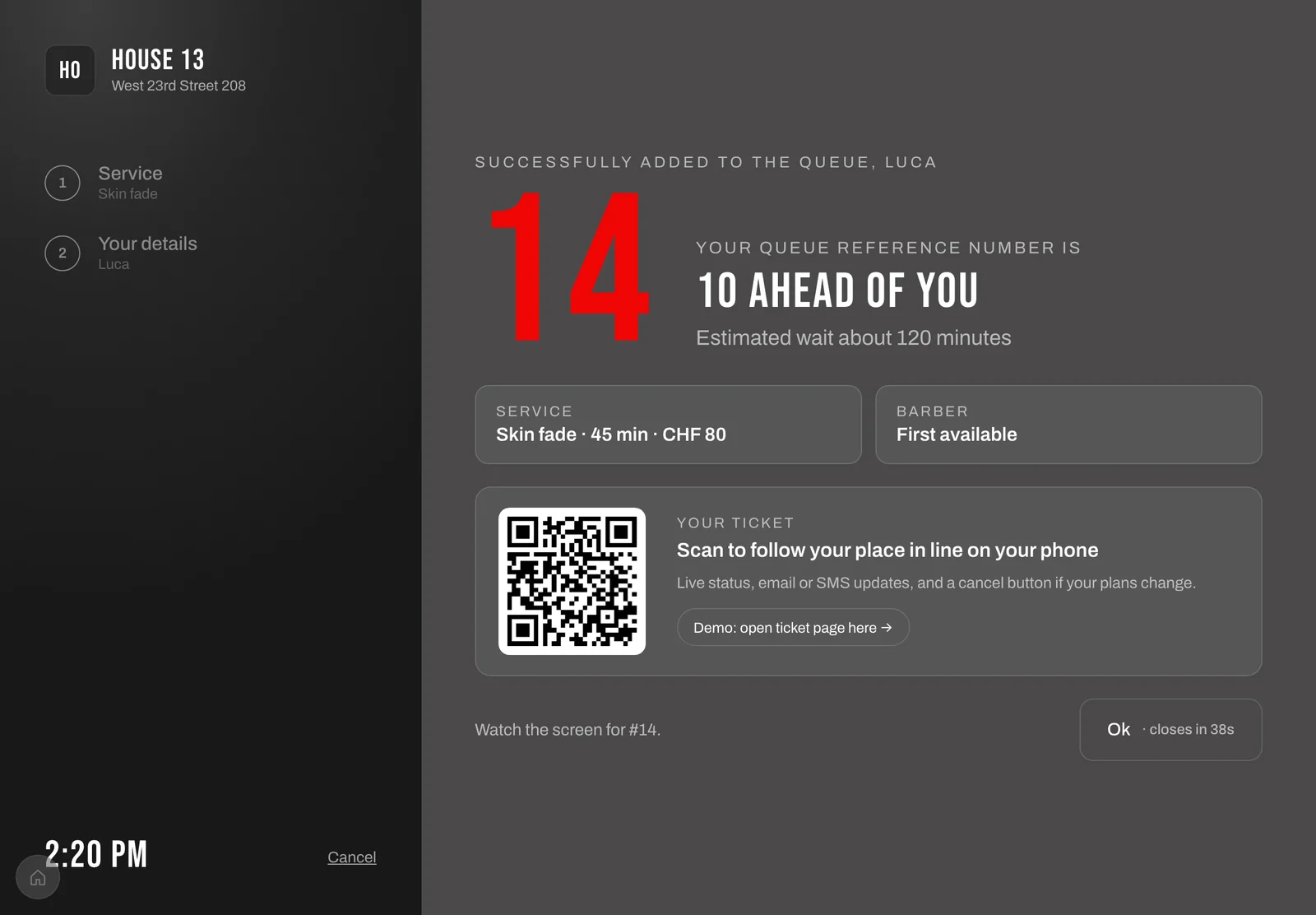
- Confirmation. The number or the time, and a QR code that opens the ticket on the client's phone. The screen returns to the start after a time you set.
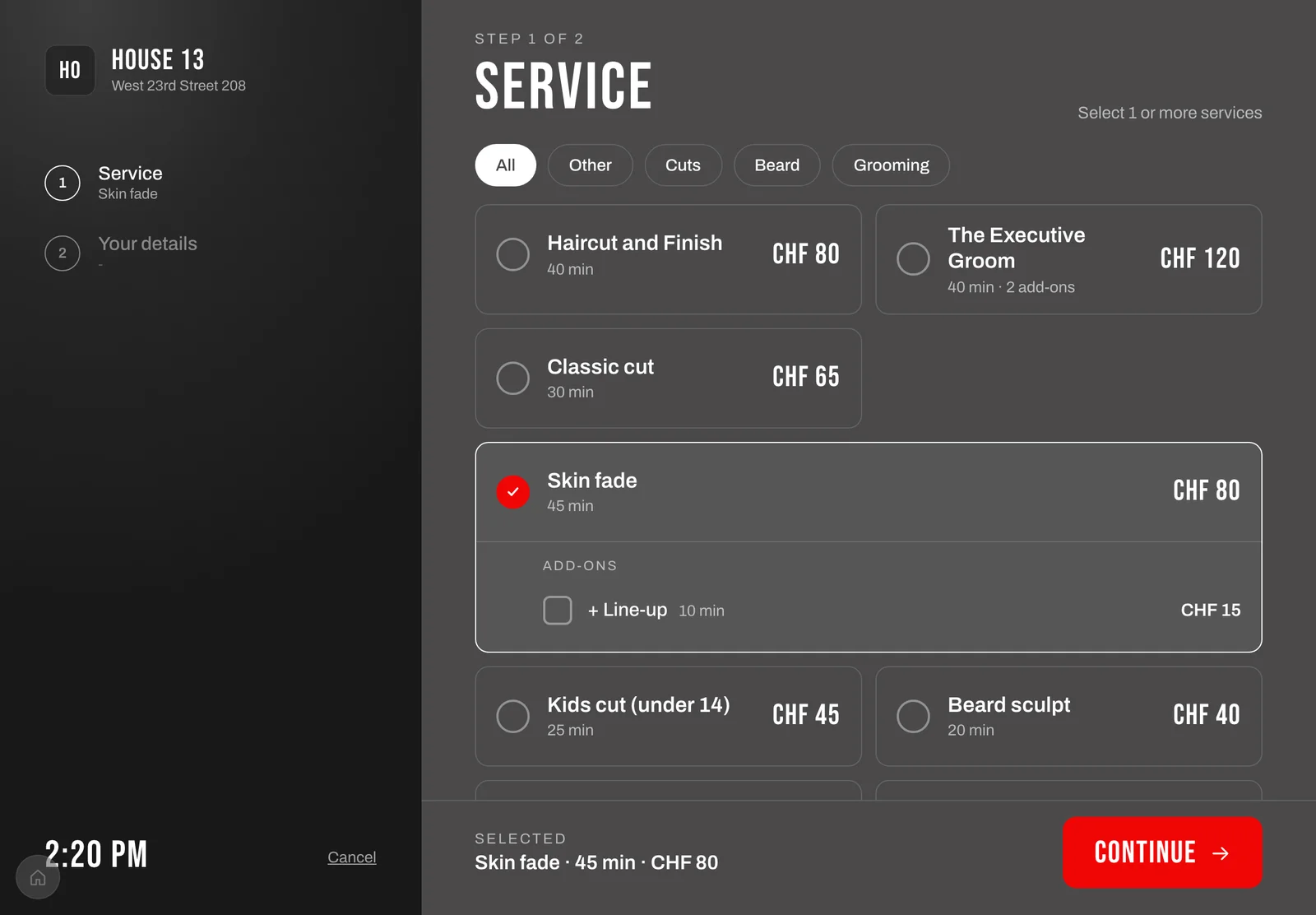
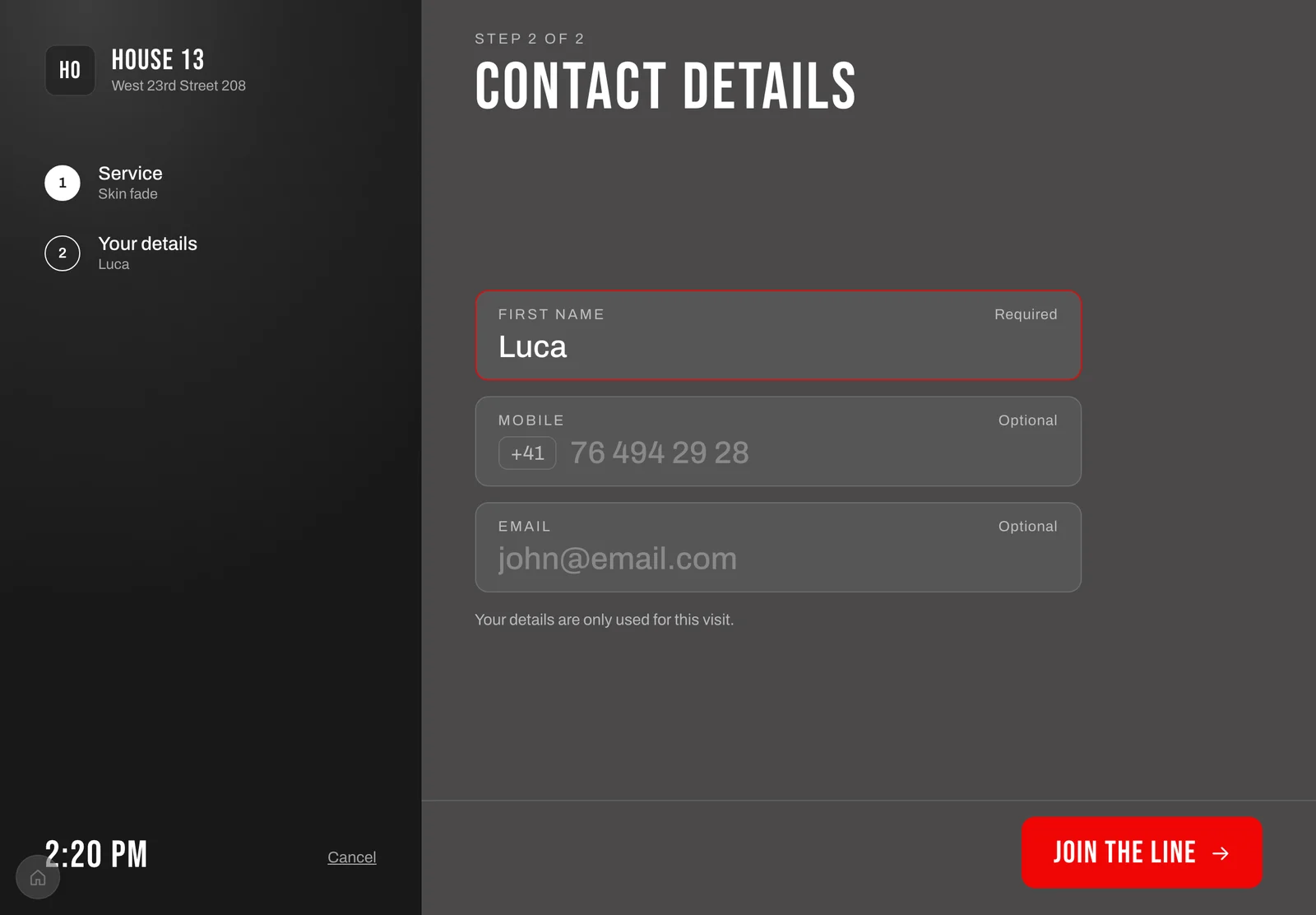
There are no payments on the kiosk. Checkout stays in the Barberly app.
A ticket on the client's phone
The QR code on the confirmation screen opens a ticket page. Nothing to install.
While waiting, the ticket shows the number, how many are ahead, the estimated wait, the barber and the services. The status updates on its own: waiting, your turn, in the chair, done. The client can leave the line, or cancel a timed appointment until it starts.
Get updates. On the ticket the client can subscribe to updates by email, SMS or both, as you allow. They get a message when they are next in line and another when your team calls them, with the barber's name. A client who left no contact still has the ticket on the phone.
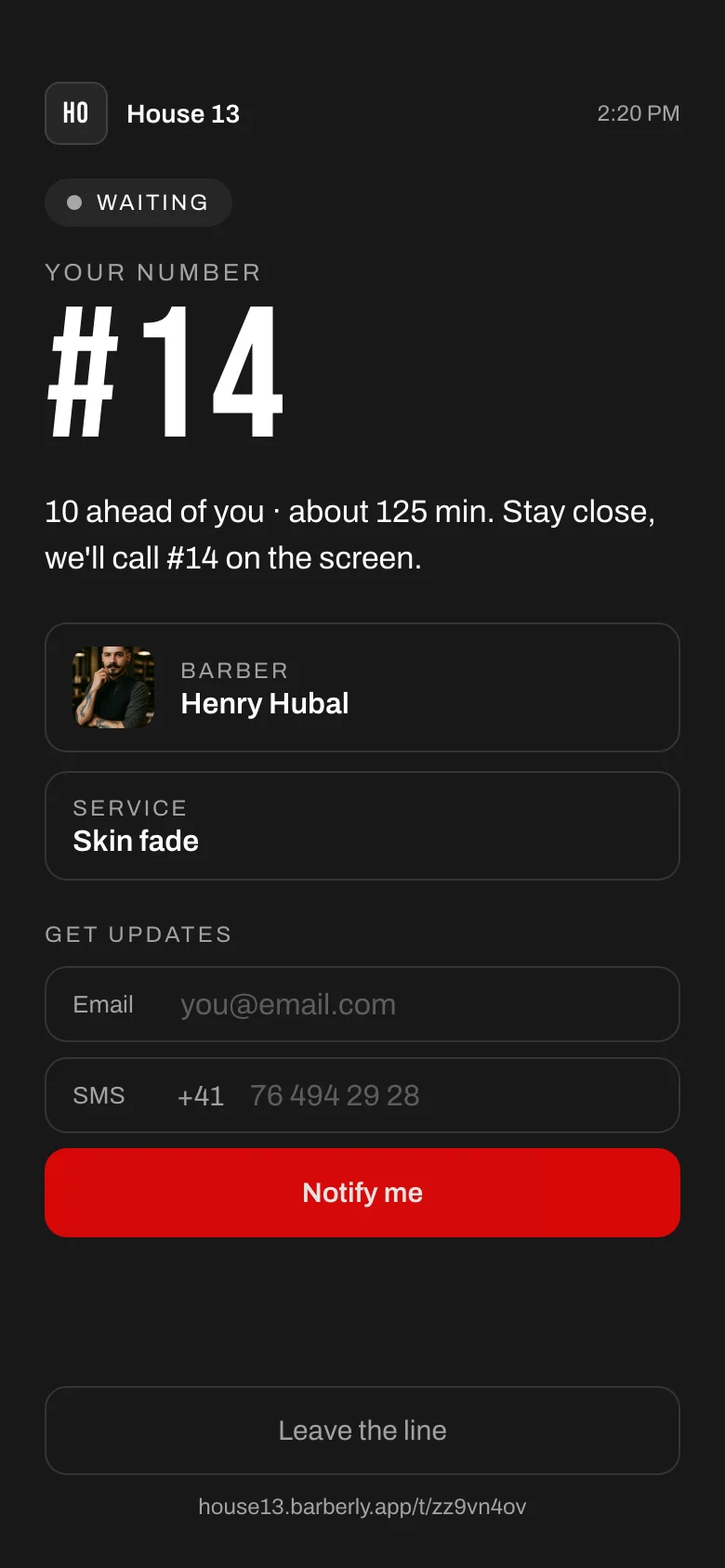
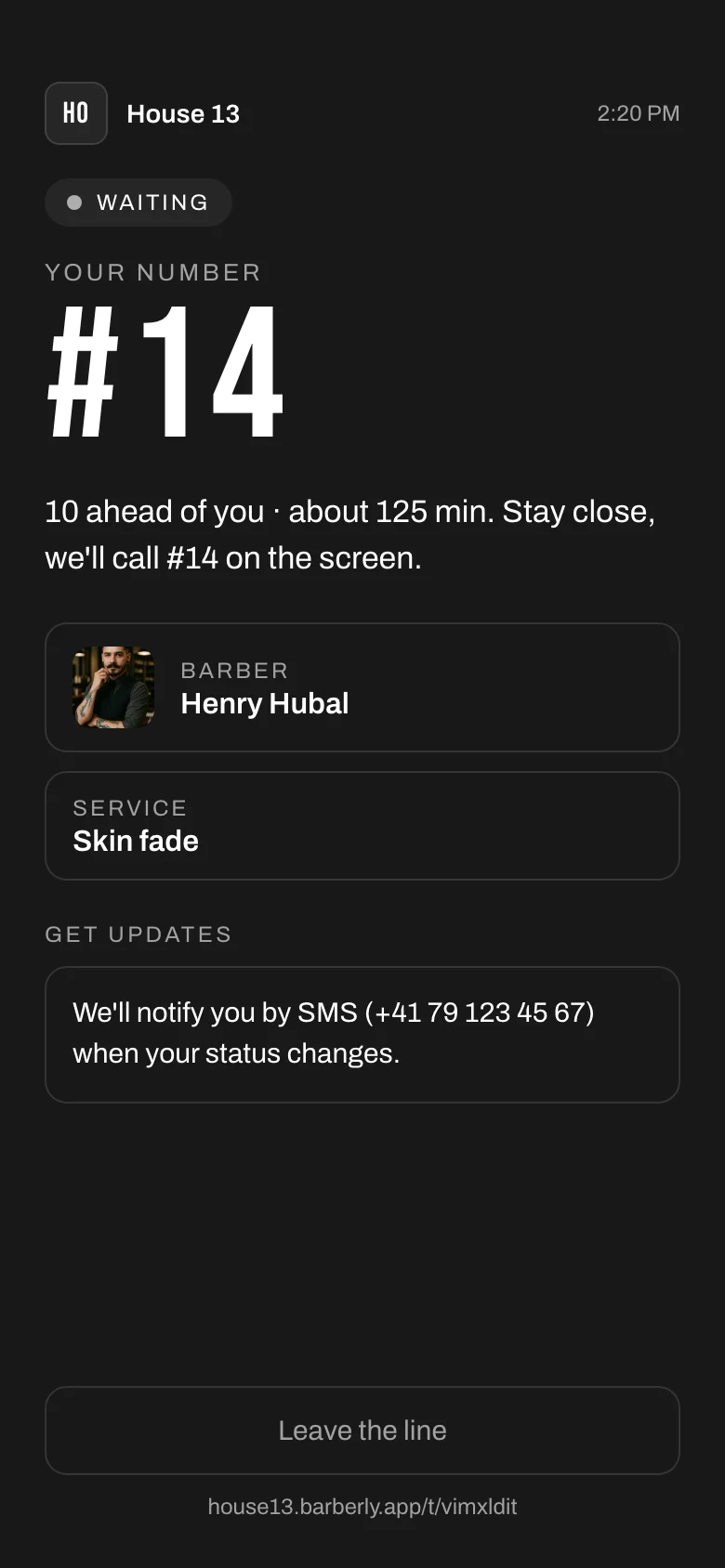
Tickets, updates and calls go out in your shop's language. SMS uses your SMS plan; without SMS, everything goes by email.
The TV: queue screen and appointment board
Two screens, both live within seconds of a change.
Walk-in queue screen, new. On the left, the clients called for service: big numbers, the barber they go to, "please come forward" or "in the chair". On the right, the waiting list with numbers, names, services and the estimated wait per client. When the list is longer than the screen, it scrolls by itself.
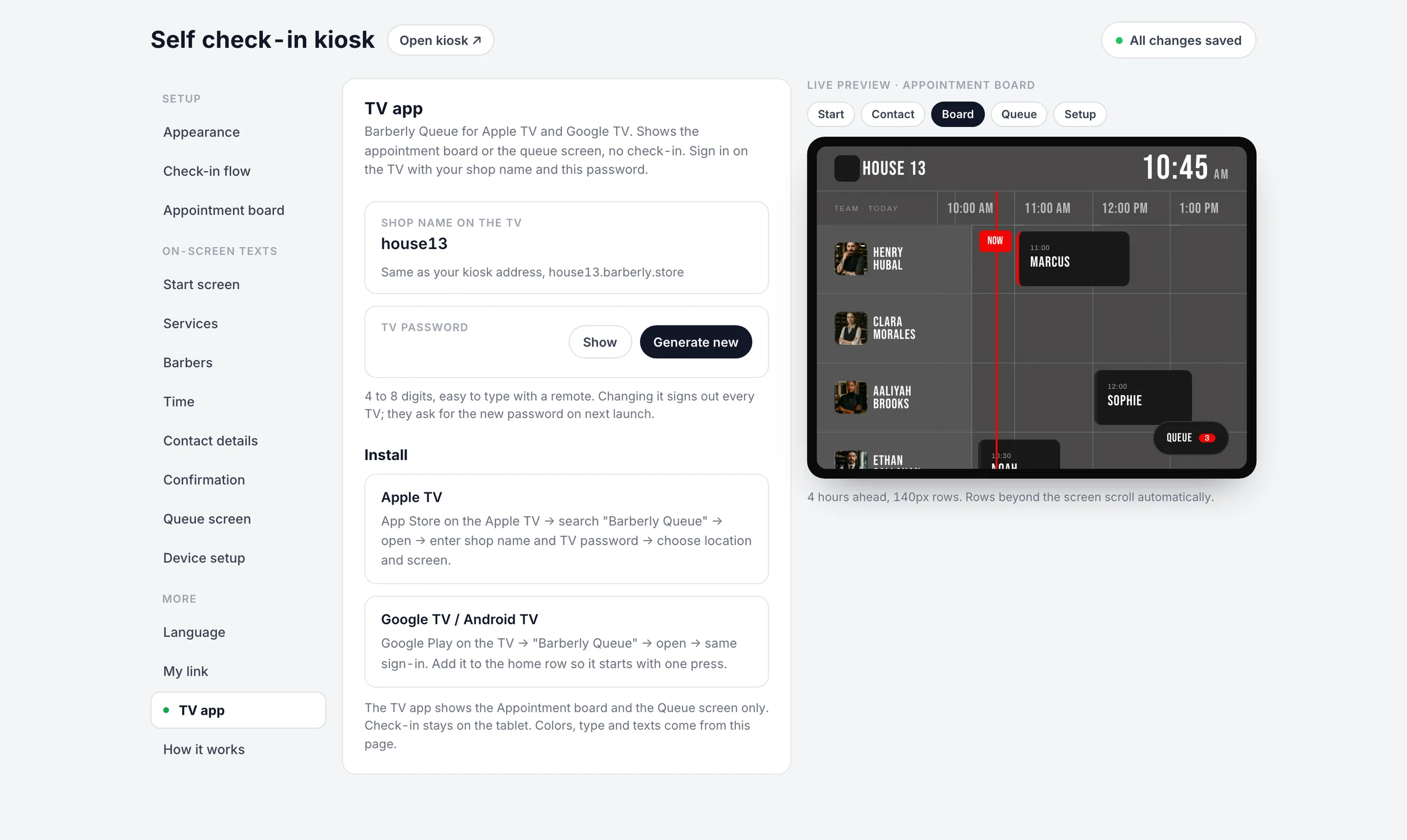
Appointment board, updated. Today's timeline per barber: appointments, walk-ins and kiosk check-ins, breaks and blocked time, the live "now" line, who is in the chair. A queue button shows how many are waiting and opens the queue on top of the board. You set how many hours ahead it shows and the row height, so two barbers or ten fill the screen.
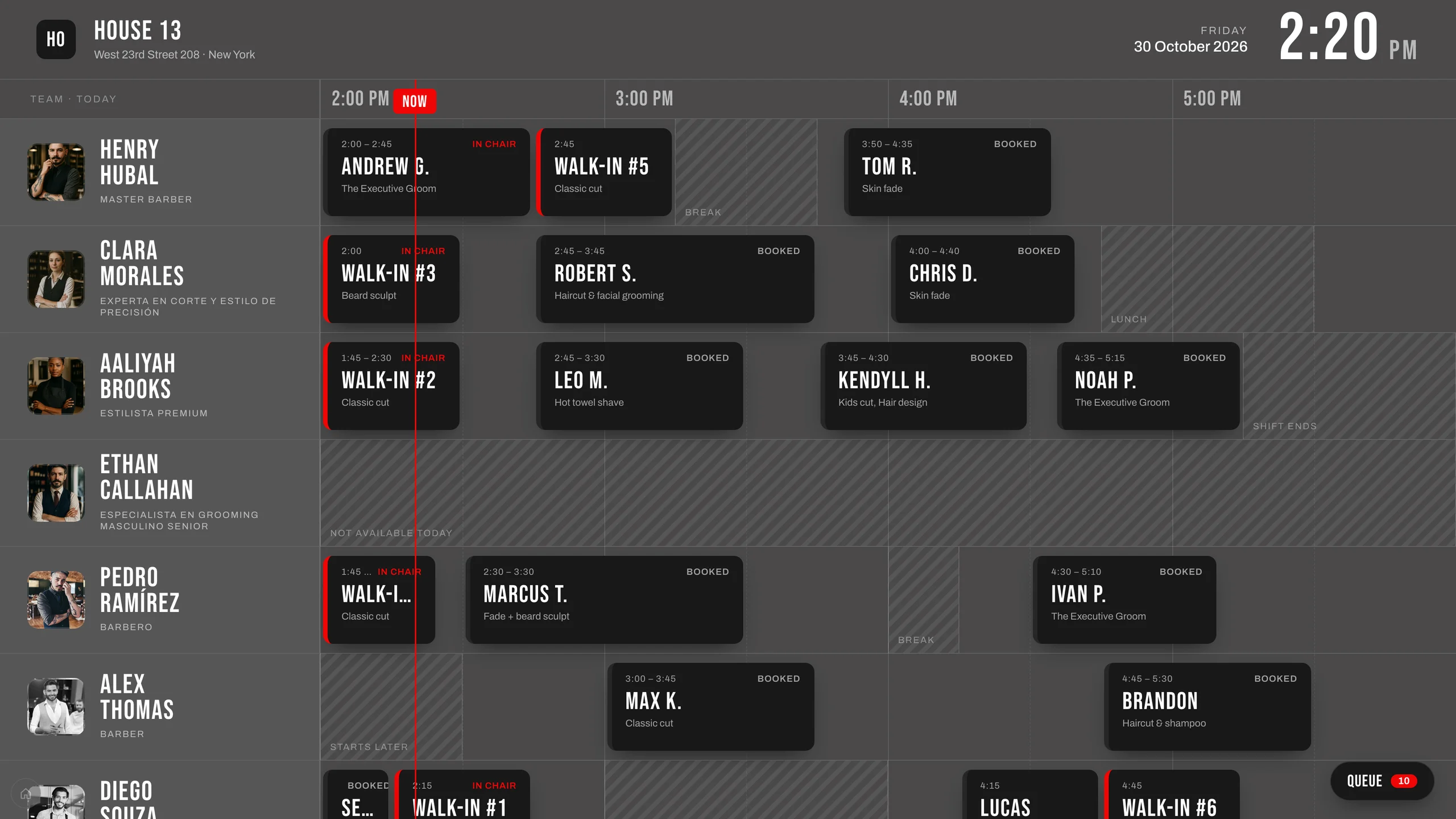
Clients appear on the screens as first name and last initial.
The TV app: Barberly: Walk-in Queue
Any TV with a browser can open the screens at your shop's address. The new app for Apple TV and Google TV makes it easier to leave a TV running: you sign in once with your shop name and a TV password, pick the location and the screen, and it stays there, keeps the TV awake and comes back to the same screen after a restart.
The TV password is 4 to 8 digits, set or generated in the portal. Changing it signs out every TV. The app shows the same colours, type and texts as the kiosk, and its sign-in page speaks the TV's language.
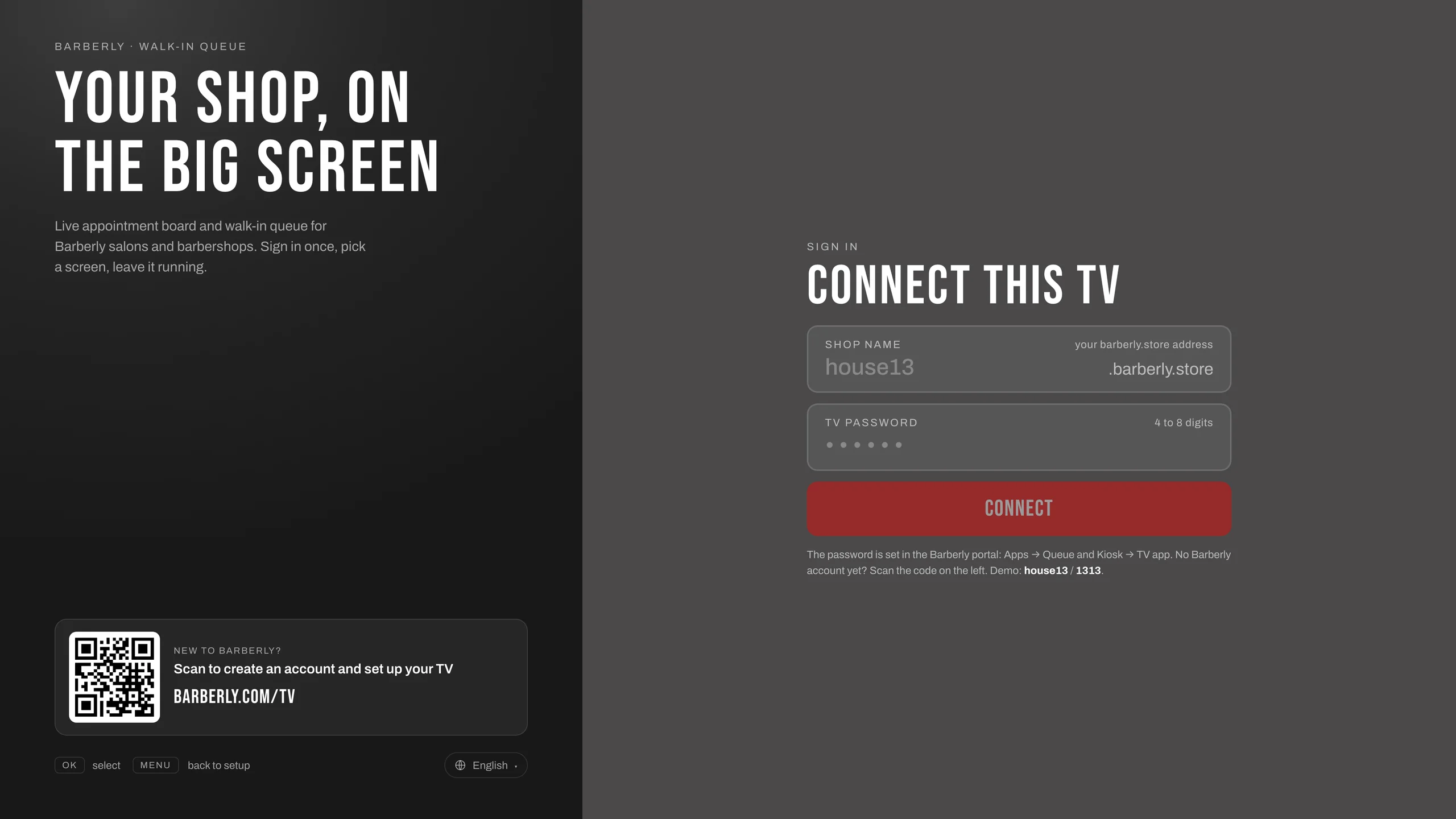
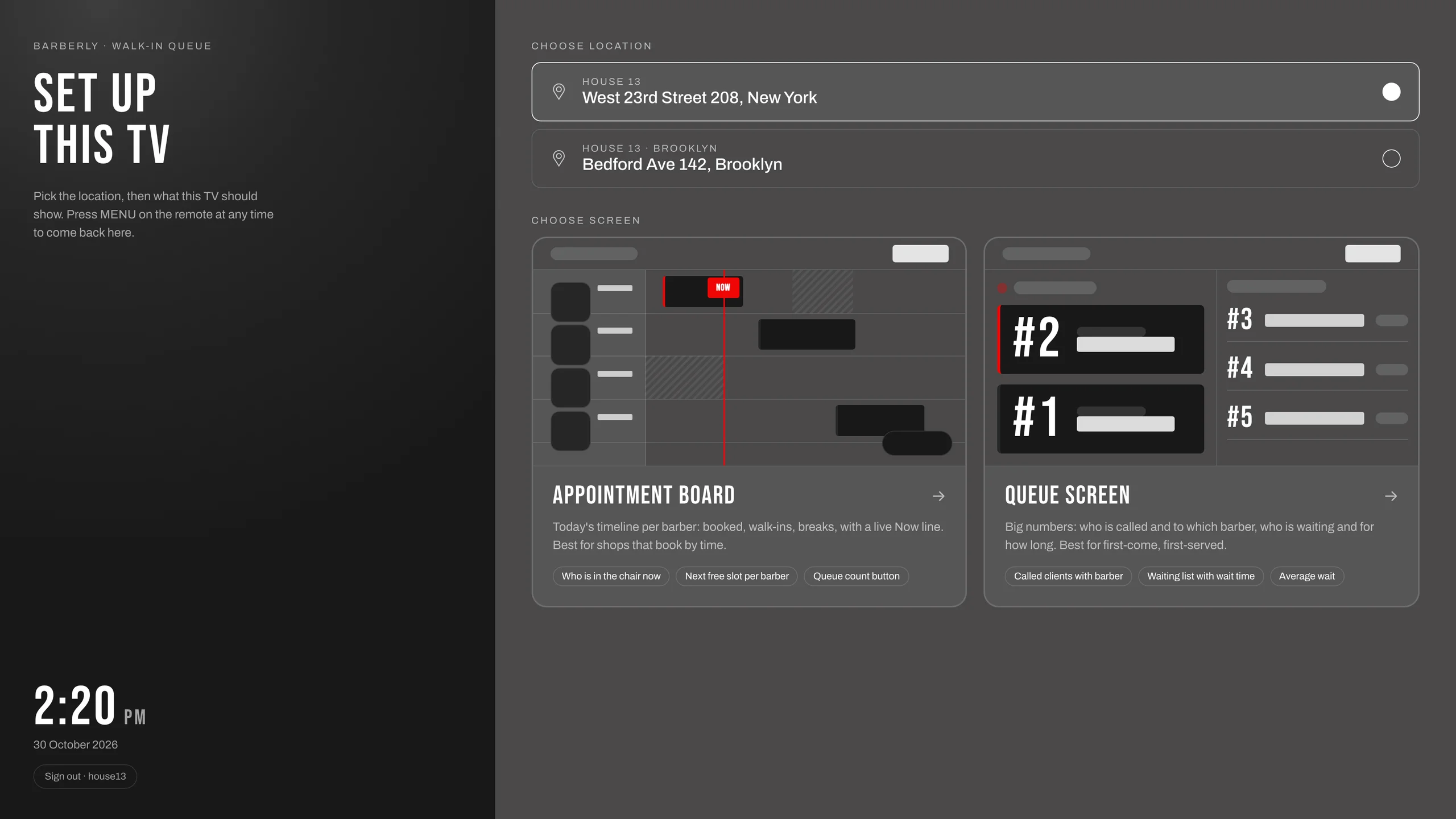
The app is free for Barberly customers and runs on Apple TV (tvOS 15.1 and later) and Google TV or Android TV (Android 7 and later). Other smart TVs use the browser. Search for "Barberly" in the App Store or Google Play on the TV.
Your team runs the queue from the app
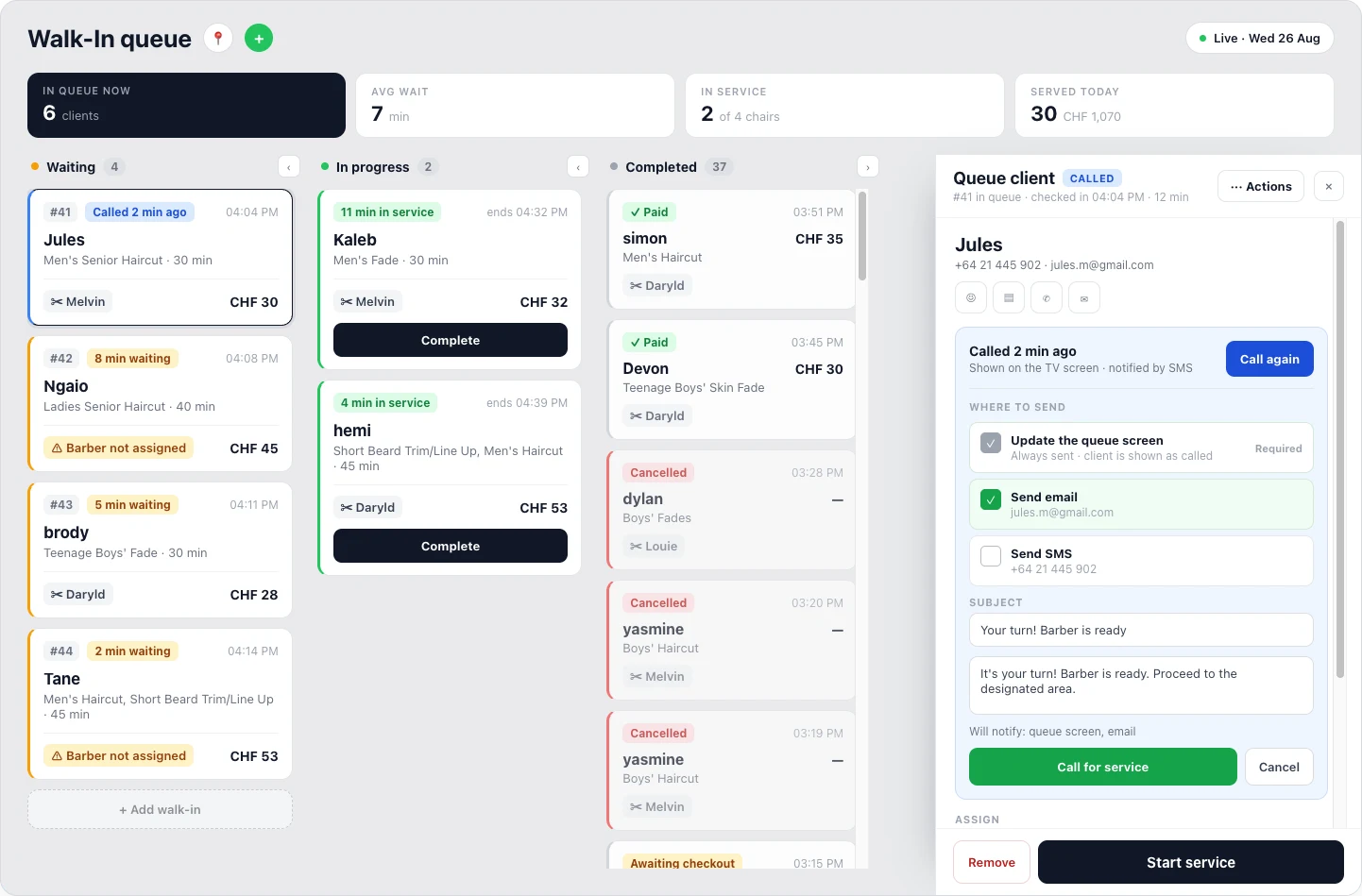
The queue page in the portal and in the Barberly business app shows today at a glance: in queue now, average wait, served today, and the columns waiting, in service and completed. From there your team adds a walk-in by hand, assigns or changes the barber, starts and completes a visit, removes someone who left, or goes to checkout.
Call for service updates the queue screen and, with one tap, sends an email or an SMS to the client. The channels the client subscribed to are already selected.
One settings page, with a live preview
Everything is set up in the portal or the business app under Apps, Walk-in queue and kiosk. A live preview on the right follows every change, and every change saves on its own.
- Appearance. Colour themes Black, Red, Navy and Sand, or your own three colours. Four type pairs. A contrast check warns when a combination will be hard to read.
- Check-in flow. Whether clients choose a barber, how long the confirmation stays on screen, which contact details to ask for.
- Ticket. Ticket by SMS on or off, and which updates clients can subscribe to.
- Appointment board. Hours ahead, row height, the queue button text.
- Texts. Every client-facing text is editable, screen by screen, with the default shown as a placeholder. One click switches all texts to another language's defaults.
- Device setup. Show only the screens you use, so a shop that only runs the queue sees only the queue.
The kiosk, the TV screens, the ticket and the messages speak 20 languages, including every fixed phrase, not only the texts you edit.
If you already use the kiosk
Tablets and TVs that run the old kiosk switch to the new one at their next page reload. The old addresses keep working. You do not have to open the settings first: until you save the new settings, your kiosk runs with the defaults in your shop's language.
Colours and texts set in the old kiosk are not carried over, because the theme model is new. Set them again on the new page; it takes a few minutes with the preview. Your language is carried over. The TV app is optional: set a TV password in the portal to use it.
Good to know
- The kiosk and the TV need internet.
- The queue resets every day. Tickets do not carry over to the next day.
- One TV password per shop.
- Nothing to buy from Barberly: the kiosk and the TV screens run on your own tablet and TV.
Read more on the walk-in queue, self check-in kiosk and appointment board pages.